Product added to cart

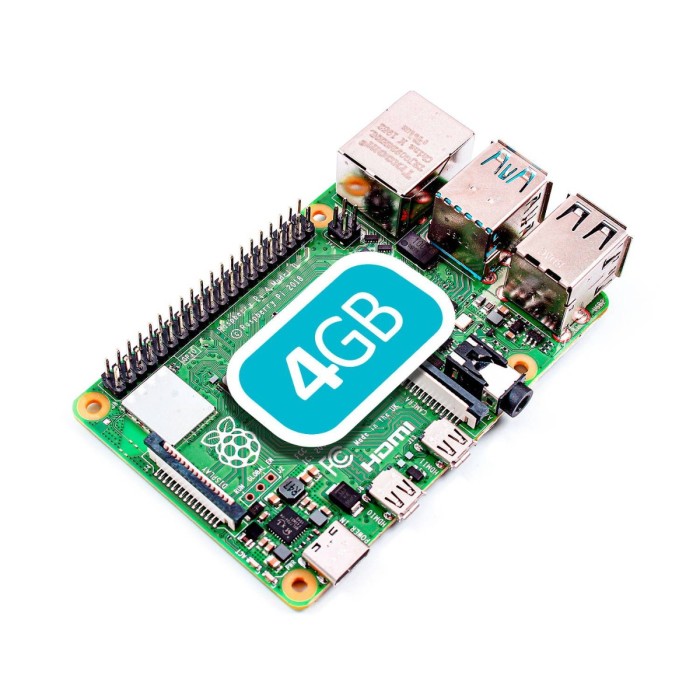


The Raspberry Pi 4 is a credit-card-sized single-board computer developed by the Raspberry Pi Foundation. It is the fourth generation of the Raspberry Pi series.

Creating an account has many benefits: check out faster, keep more than one address, track orders and more.



We offer free shipping on all orders over $35 and under 2kg.
Please note that free shipping is only available for orders under 2kg.
DHL is a renowned shipping courier known for its global reach and reliable delivery services. With a vast network and advanced logistics capabilities, DHL offers fast and secure shipping solutions for international shipments.
For the majority of countries, DHL provides an estimated delivery time of 5 to 7 days.
In certain instances, DHL may not be available for shipments to EU countries. In such cases, we may opt to ship your order using FedEx instead of DHL. Rest assured, FedEx offers a comparable estimated time of arrival (ETA) and your package should typically arrive within 5-7 days.
The base shipping cost for DHL is $35. You can see the final shipping amount on the checkout page. If your order is over $200 and less than 2kg, you will qualify for free shipping through DHL Express.
Yun Express is a shipping courier known for its reliable and efficient international shipping services. With a strong global network and advanced logistics solutions, Yun Express ensures timely delivery and provides tracking options for customers to monitor their shipments.
The delivery time in most cases is 10-15 business days. If your order is over $35 and less than 2kg,you will qualify for free shipping through YunExpress.
YunExpress shipments can be tracked here: https://www.yuntrack.com/
Our shipping term is FOB Shenzhen, which does not cover any customs fees. It is important to note that you may be responsible for paying any charges imposed by your country's government, such as duties, taxes, and additional fees imposed by the courier company.
 Raspberry Pi 4 Model B - 2G RAM Previous
The Raspberry Pi 4 was released by the Raspberry Pi Foundation in June 2019. It builds upon the success of its predecessors, offering enhanced performance, connectivity, and versatility. The Raspberry Pi 4 is designed to cater to a wide range of applications, from educational projects to DIY electronics, home automation, media centers, and more.
Raspberry Pi 4 B offers ground-breaking increases in processor speed, multimedia performance, memory, and connectivity compared to the prior-generation Raspberry Pi 3 B+, while retaining backwards compatibility and similar power consumption. For the end user, Raspberry Pi 4 B provides desktop performance comparable to entry-level x86 PC systems.
Note: This Raspberry Pi 4 has 4GB of RAM. You can switch to 8GB version by click on this link.

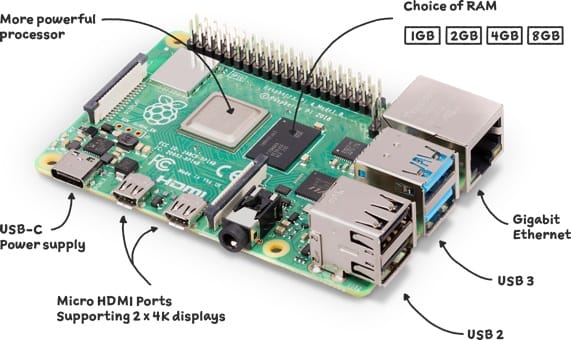
The Raspberry Pi 4 has gained widespread adoption due to its improved specifications, making it a versatile and powerful tool for a variety of projects across different domains. Its affordability and extensive community support further contribute to its popularity among hobbyists, educators, and DIY enthusiasts.
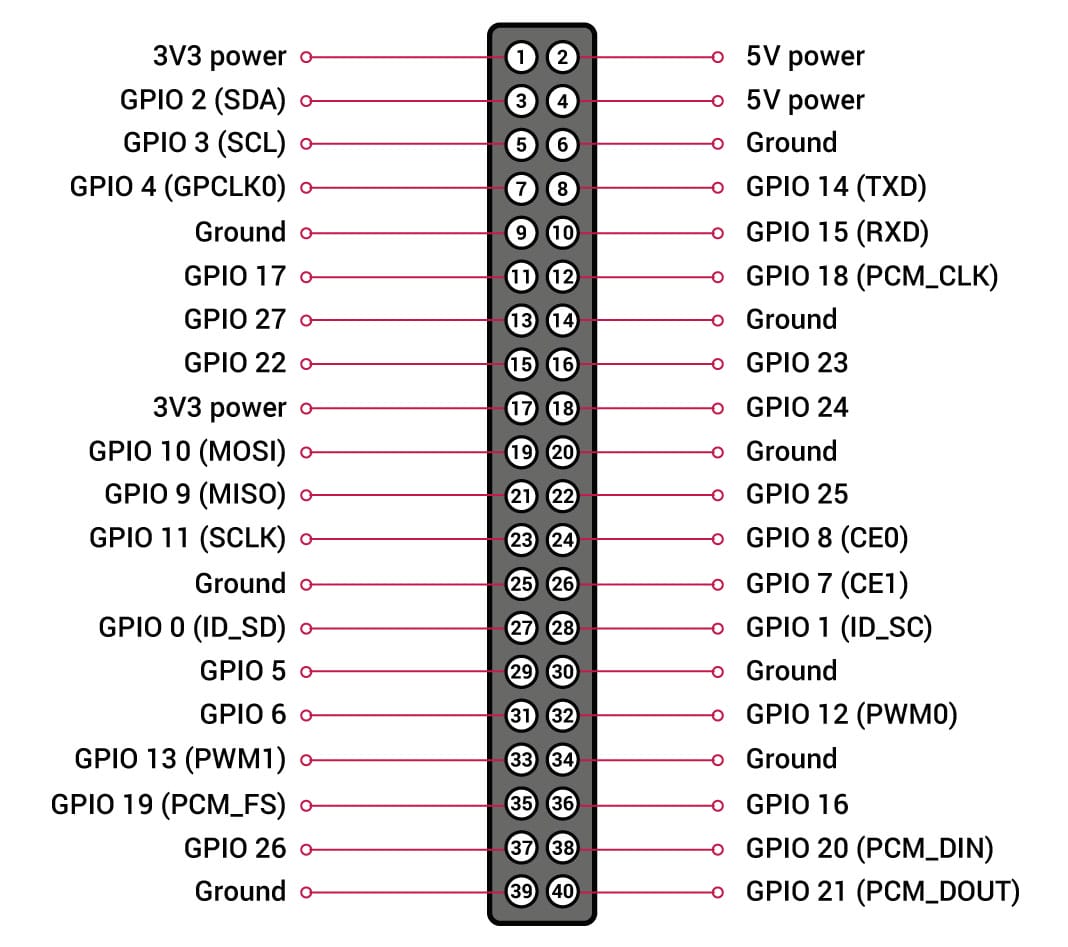
The Raspberry Pi 4 Model B features a 40-pin GPIO (General Purpose Input/Output) header that allows users to interface with various hardware components and peripherals. Here's a brief overview of the GPIO pinout for the Raspberry Pi 4:
To check the pinouts of Raspberry Pi 4 in Raspbian OS (now known as Raspberry Pi OS), you can use various command-line tools and utilities. Here are some methods:
The GPIO utility provides a command-line interface to query and configure the GPIO pins. Open a terminal on your Raspberry Pi and run the following commands:
# Install the GPIO utility if not already installed
sudo apt-get update
sudo apt-get install wiringpi
# Run the gpio readall command to display the pinout
gpio readall
This will provide a table with the status and function of each GPIO pin.
The raspi-gpio utility is another tool for inspecting and manipulating GPIO pin status. Run the following commands:
# Install the raspi-gpio utility
sudo apt-get update
sudo apt-get install raspi-gpio

# Run the raspi-gpio readall command
raspi-gpio readall
This will display the GPIO pinout similar to the GPIO utility.
The pinout command provides a graphical representation of the GPIO pinout. If it's not installed, you can install it using the following:
# Install the pinout command
sudo apt-get update
sudo apt-get install python3-gpiozero
# Run the pinout command
pinout
This will show a visual representation of the GPIO pins and their functions.
To get started with the Raspberry Pi 4 Model B single-board computer (SBC), you'll need a few essential components. Here's a basic list to help you get started:
The primary difference between the 4GB and 8GB versions of the Raspberry Pi 4 lies in the amount of available RAM. The increased RAM in the 8GB version can be advantageous for certain applications and workloads, but for many general-purpose uses, the 4GB version may be sufficient. Here are some considerations:
Use Cases for 8GB Raspberry Pi 4
Use Cases Common to Both Versions
The Raspberry Pi 4 is a credit-card-sized single-board computer developed by the Raspberry Pi Foundation. It is the fourth generation of the Raspberry Pi series.
Direct comparisons between ARM and x86 architectures are challenging due to their fundamental differences.
However, if we consider the BCM2711's typical use cases (light computing, hobbyist projects, embedded systems), a rough equivalent in the Intel Core i series might be an entry-level or mid-range Intel Core i3 processor. Here are a couple of examples:
Intel Core i3-2100:
Intel Core i3-2120:
The Raspberry Pi 4 supports various operating systems, including Raspbian (now called Raspberry Pi OS), Ubuntu, Kali Linux, and more. Check out top 10 operating systems that you can install on Raspberry Pi 4.
Yes, it's possible to run Windows 11 on Raspberry Pi 4. You'll first need to download a Windows 10 ISO file, burn it to an SD card, then connect the bootable SD card to Raspberry Pi 4 computer to install your operating system. For more information, you can read Installing Windows 11 on Raspberry Pi 4 for an step-by-step guide.
The Raspberry Pi 4 Model B features a 64-bit quad-core ARM Cortex-A72 processor. This represents an upgrade from the 32-bit architecture used in previous Raspberry Pi models. The move to a 64-bit architecture allows the Raspberry Pi 4 to take advantage of increased memory capabilities and improved performance in certain computing tasks.
Yes, the Raspberry Pi 4 can function as a basic desktop computer. With its improved hardware specifications, it is capable of handling tasks such as web browsing, word processing, and even some lightweight gaming.
Please read this article to understand how to get started with Raspberry Pi 4B.
The GPIO (General Purpose Input/Output) pins on the Raspberry Pi 4 allow it to interact with and control external hardware, such as sensors, LEDs, and other devices. To learn how it works read Raspberry Pi GPIO Programming.
The Raspberry Pi 4 has multiple USB ports for connecting peripherals such as keyboards, mice, and external storage devices. It also has an HDMI port for connecting to a display. For example, by reading this article, you can learn how to connect PIR sensor to Raspberry Pi 4 GPIO pins and use it.
Yes, it is possible to overclock the Raspberry Pi 4 to increase its performance. However, this may void the warranty and should be done cautiously to avoid overheating issues.
Step 1: Open the Raspberry Pi Configuration Tool:
sudo raspi-config
Step 2: Navigate to "Performance Options"
Inside the configuration tool, use the arrow keys to navigate to "Performance Options."
Step 3: Select "Overclock"
Choose the "Overclock" option to access various overclocking presets.
Step 4: Choose an Overclocking Preset
The configuration tool provides several overclocking presets, ranging from moderate to more aggressive settings. Options might include "None," "Moderate," "High," and "Turbo."
Step 5: Reboot
After selecting an overclocking preset, the system will prompt you to reboot the Raspberry Pi to apply the changes.
Step 6: Monitor Temperature
Keep an eye on the temperature of your Raspberry Pi, especially if you've chosen a more aggressive overclocking setting. Overheating can lead to instability. You can monitor the temperature using the vcgencmd command.
vcgencmd measure_temp
Yes, the Raspberry Pi 4 supports 2x 4K video output through its micro HDMI port.
Performance is good enough for most purposes, and while you can happily run most software you shouldn't expert performance. The quad-core ARM Cortex A72 SoC is clocked at 1.5GHz, and in our tests an 8GB Pi 4 achieved a single core score of 183 and a multi core score of 576 with the beta ARMv7 builds of Geekbench 5.
Several Single Board Computers (SBCs) compete with the Raspberry Pi 4 Model B in the market. These alternatives offer various features, performance levels, and pricing. Here are some notable competitors:
Odroid XU4
RockPro64
NVIDIA Jetson Nano:
ASUS Tinker Board
Odroid N2
BeagleBone Black
NanoPi M4
Pine64 RockPro64:
These alternatives cater to various needs, and the choice depends on specific project requirements, desired features, and budget considerations. Raspberry Pi remains popular due to its strong community support, extensive ecosystem, and educational focus. However, other SBCs may offer specific advantages in certain use cases.
helloxxxx

Please complete your information below to login.
Sign In
Create New Account